

Use Tresor with GitHub Copilot in VS Code
GitHub Copilot in VS Code can use Tresor through VS Code's Custom Endpoint provider. This setup follows the official VS Code language model flow: open Manage Language Models, add a Custom Endpoint, then save the generated chatLanguageModels.json config.
1.122 or newer for this flow. VS Code added the Custom Endpoint provider to Stable in version 1.122. If you do not see Custom Endpoint under Add Models, update VS Code first.1. Open the Language Models editor
Open the Command Palette and type: Chat: Manage Language Models.
2. Add a Custom Endpoint provider
In the Language Models editor, click Add Models and select Custom Endpoint.
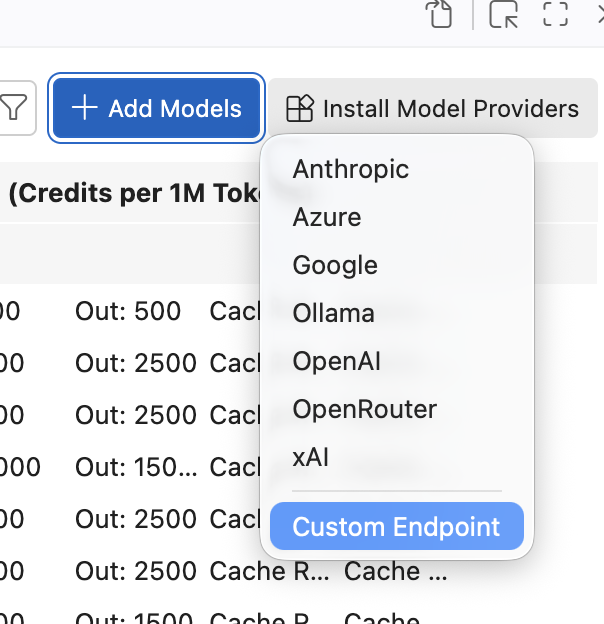
VS Code then prompts for the initial provider details:
- Group name:
TresorAI - Display name:
GLM-5.2 - API key: your Tresor API key
- API type:
Chat Completions
After that, VS Code opens chatLanguageModels.json so you can finish the model definition.
3. Save the Tresor model config
Use this configuration as the working model definition:
[
  {
    "name": "TresorAI",
    "vendor": "customendpoint",
    "apiKey": "${input:chat.lm.secret.<generated-id>}",
    "apiType": "chat-completions",
    "models": [
      {
        "id": "global/chutes/glm-5.3",
        "name": "GLM-5.3",
        "url": "https://api.tresor.co/v1/chat/completions",
        "toolCalling": true,
        "vision": false,
        "maxInputTokens": 1000000,
        "maxOutputTokens": 32000,
        "supportsReasoningEffort": ["low", "high", "max"],
        "reasoningEffortFormat": "chat-completions"
      }
    ]
  }
]
Keep the apiKey reference that VS Code generates for you. The exact ${input:chat.lm.secret.<generated-id>} value is machine-specific, so your suffix will differ from other examples.
The important fields are:
vendor: "customendpoint"so VS Code treats it as a Custom Endpoint providerapiType: "chat-completions"because Tresor exposes an OpenAI-compatible chat completions endpoint hereid: "global/chutes/glm-5.2"because that is a current public model identifier exposed by Tresor's/v1/modelsAPItoolCalling: trueso the model is available for agent and tool-enabled chat flowsvision: falsebecause this model should not be advertised to VS Code as vision-capableurl: "https://api.tresor.co/v1/chat/completions"so requests go to Tresor
4. Pick the model in Copilot Chat
Save chatLanguageModels.json, return to Copilot Chat, and select GLM-5.3 from the model picker.
If the model does not appear immediately, restart VS Code. The official VS Code docs call this out as the fallback for newly added Custom Endpoint models.
Once selected, Copilot Chat sends that chat model's requests through Tresor.